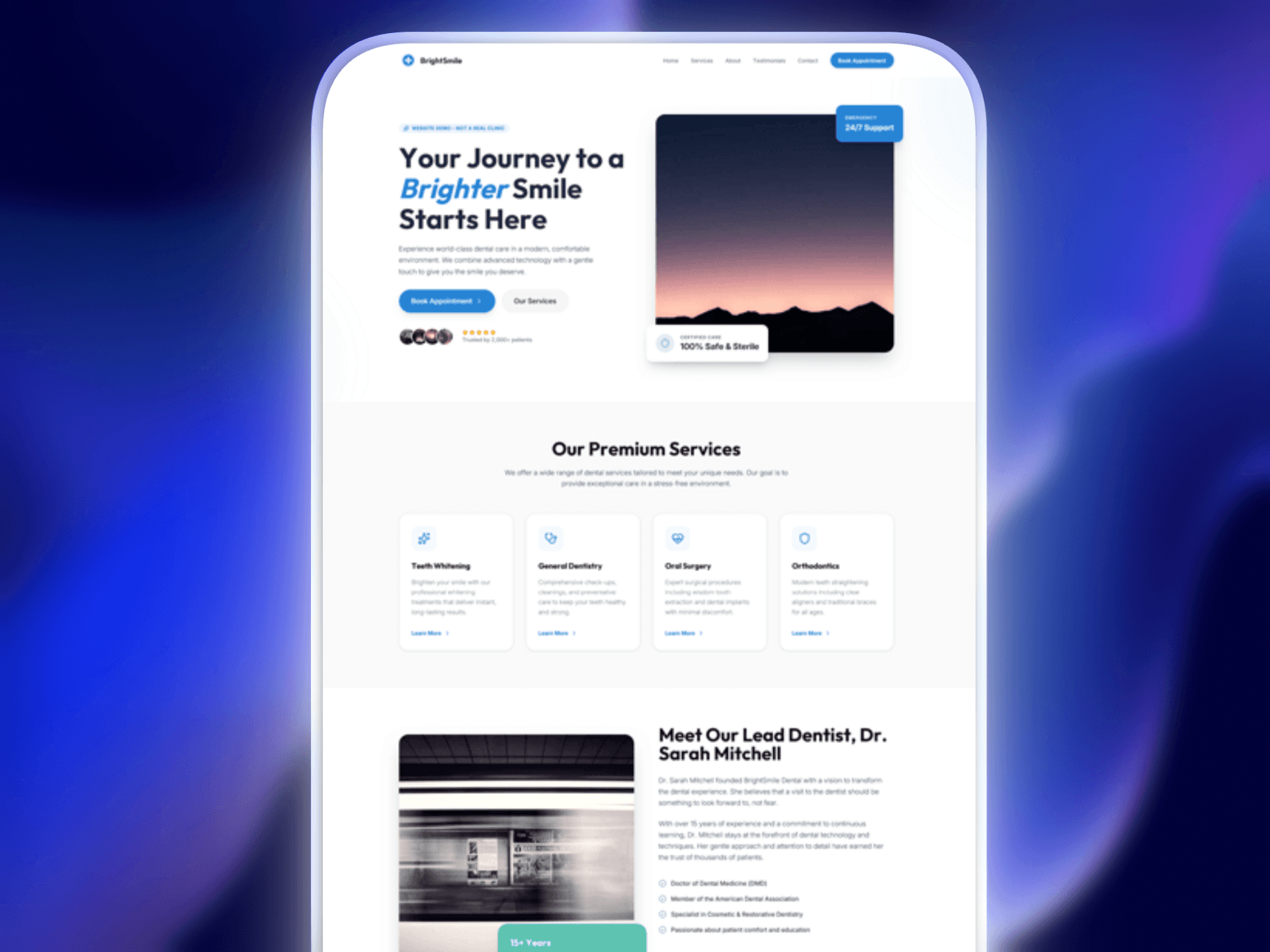
Step by step walkthrough on how to convert a Tailwind-based AI-generated design to a fully functioning WordPress site with Full Site Editing and Block Editor.
Skip to final resultFor this example I’m using Gemini with Google AI Studio, how ever any method that can produce a Tailwind-based site, such as Claude Code, Lovable, Cursor, or a pre-made Tailwind design will work.
No premium themes or plugins are used, just a default WordPress FSE theme and ska-blocks to facilitate using Tailwind:
- Theme: Twenty Twenty-Five
- Plugin: ska-blocks
Here is a generic prompt that defines the requirements of the site. To keep things simple it’ll be a one-page website. While I don’t have any specific requirements for the content, I explicitly define the color variable system that ska-blocks uses which will make the conversion to WP easier:
Create a modern one-page website for a dental clinic.

# Technical requirements

* Use **Tailwind CSS v4 utility classes only**.
* Do not include external CSS files.
* Use semantic HTML elements where appropriate.
* Ensure the design is **fully responsive** (mobile-first).
* Use placeholder images if needed.
* Logo should be a SVG.

# Design style

* Clean, modern healthcare aesthetic
* White background with soft accent colors
* Rounded corners, subtle shadows, and plenty of whitespace
* Professional and trustworthy appearance

## Color palette

Come up with the colors on your own, but use the following CSS variable structure (replace the values with colors from your own design, these are using example colors):

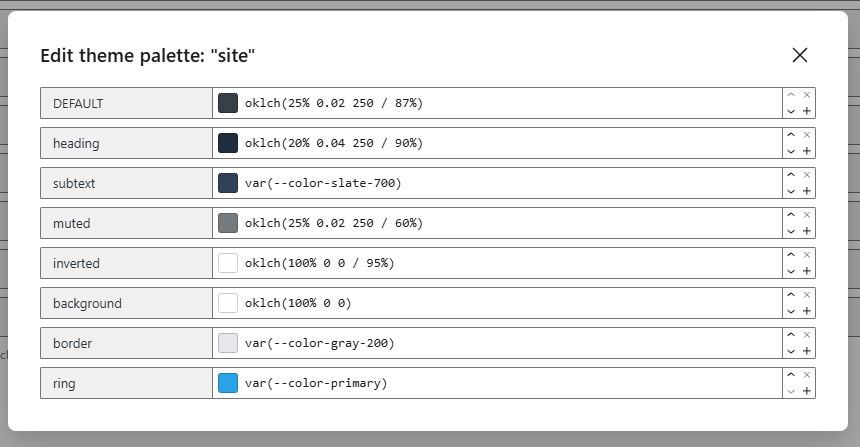
--color-site: oklch(0% 0 0 / .87); // Main text color
--color-site-heading: oklch(0% 0 0 / .87); // Text color of headings, can be same as main text color
--color-site-subtext: var(--color-slate-700); // Lighter text color that goes well with main text color
--color-site-muted: oklch(0% 0 0 / .6); // Muted text color
--color-site-inverted: oklch(100% 0 0 / .9); // Color of text when the background is dark (e.g. primary)
--color-site-background: oklch(100% 0 0); // Page background color, usually just white
--color-primary: ...; // Primary brand color
--color-secondary: ...; // A secondary color
--color-plain: var(--color-neutral-100); // Generic plain color
--color-plain-light: var(--color-neutral-50); // Generic plain color shade
--color-plain-dark: var(--color-neutral-200); // Generic plain color shade
--color-site-border: var(--color-gray-200); // Default border color
--color-site-ring: var(--color-primary); // Default ring color

Additionally create and utilize (if necessary) the color variables for derived colors (these should be used as-is):

--color-primary-light: color-mix(in oklab, var(--color-primary), white 10%);
--color-primary-dark: color-mix(in oklab, var(--color-primary), black 5%);
--color-secondary-light: color-mix(in oklab, var(--color-secondary), white 10%);
--color-secondary-dark: color-mix(in oklab, var(--color-secondary), black 5%);
--color-link: var(--color-primary);
--color-link-hover: var(--color-primary-light);
--color-link-active: var(--color-primary-dark);

The colors can be used with Tailwind e.g. `<div class="bg-primary text-site-inverted">`.

## Fonts

Tailwind's `--font-sans` CSS variable should reflect the main font family that you have chosen. If the headings use a different font then create a new variable `--font-display` and apply that to heading elements h1-h6 or use the class `font-display` where appropriate.

# Page structure

## Create up to **5 sections**

1. **Hero section**

   * Clinic name
   * Short tagline
   * Call-to-action button ("Book Appointment")
   * Dentist or clinic image

2. **Services**

   * 3–4 dental services
   * Each with icon, title, and short description

3. **About the clinic**

   * Short paragraph about the dentist or clinic
   * Image of dentist or clinic

4. **Testimonials**

   * 2–3 patient testimonials in card layout

5. **Contact / booking**

   * Address
   * Phone number
   * Email
   * Simple contact form (name, email, message)

# Additional requirements

* Include a simple **sticky navigation bar** with links to each section.
* Add **hover effects** for buttons and cards.
* Use a consistent spacing scale.
* Ensure the layout looks polished on desktop and mobile.

# Content

Use realistic placeholder text for a clinic named **"BrightSmile Dental"**, how ever the texts should indicate that this is a website demo and not a real clinic.I didn’t specify whether the site should be HTML-only, using NextJS or anything like that because all we care about is the working result, from which we can grab the Tailwind HTML and pop it into WordPress by using the ska-blocks plugin.
The result
Gemini 3 Flash Preview ran for 159s and produced a site using React and Vite:
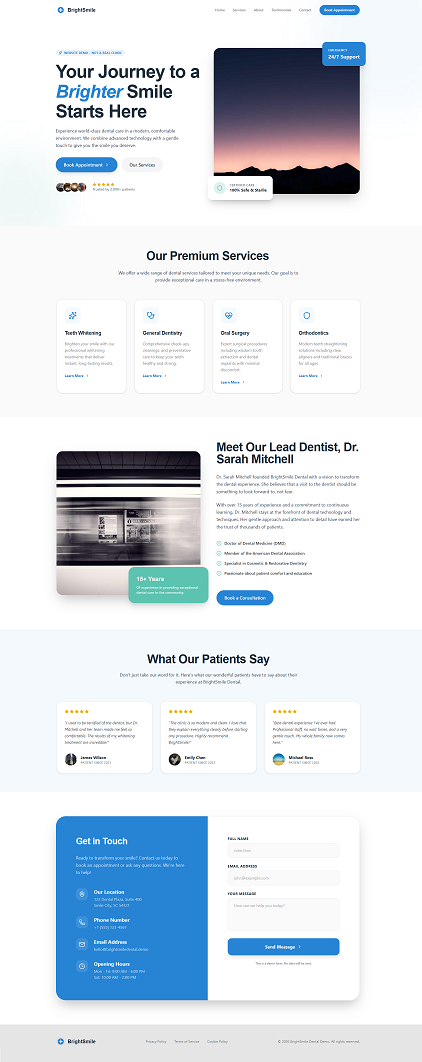
While impressive that it was generated by a machine, the design is rather disappointing – you can tell it was AI-generated by just looking at it. It’s definitely possible to keep throwing fancy keywords at the AI to come up with something more unique, but for the purposes of this guide it’ll have to do.
Converting to WordPress
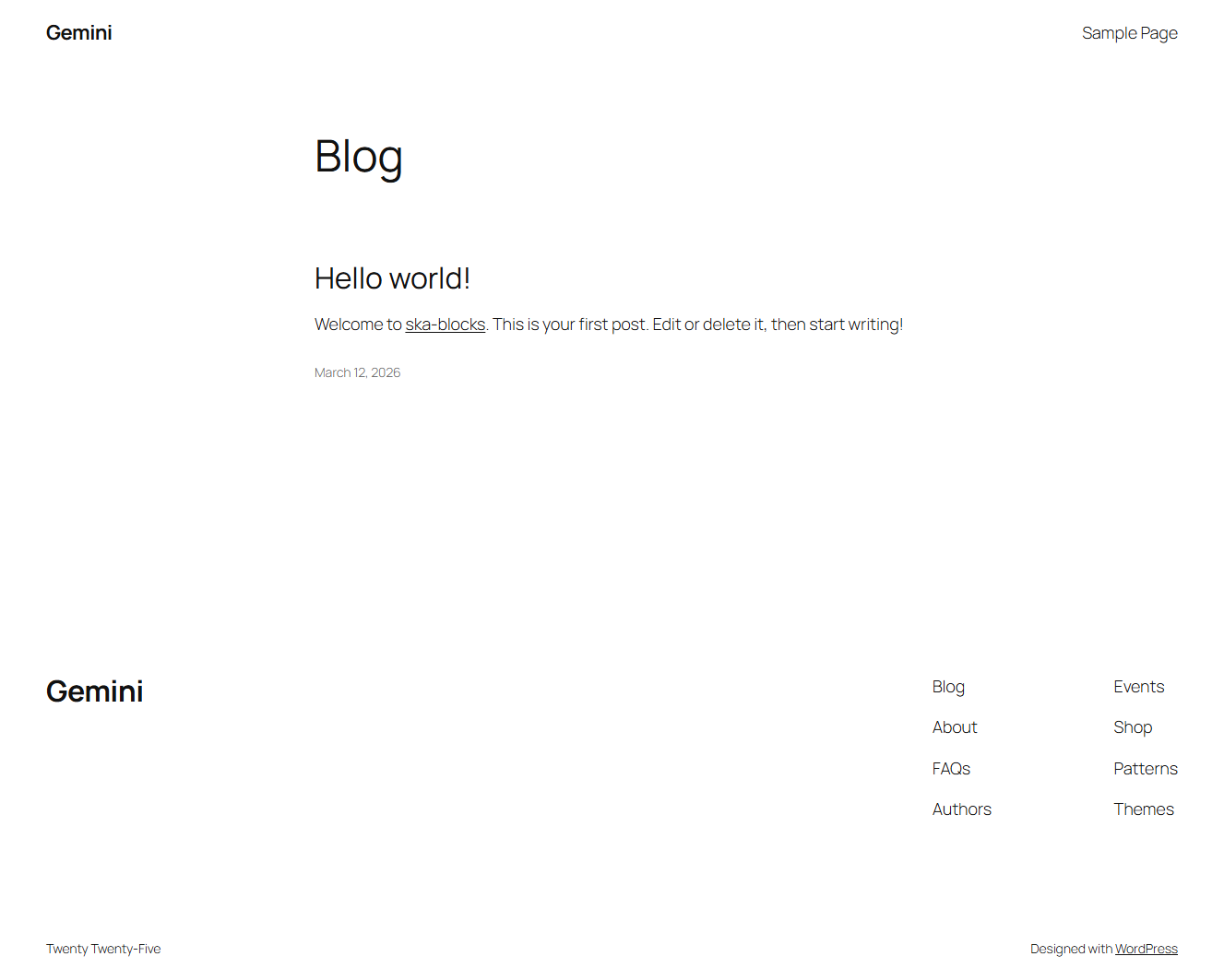
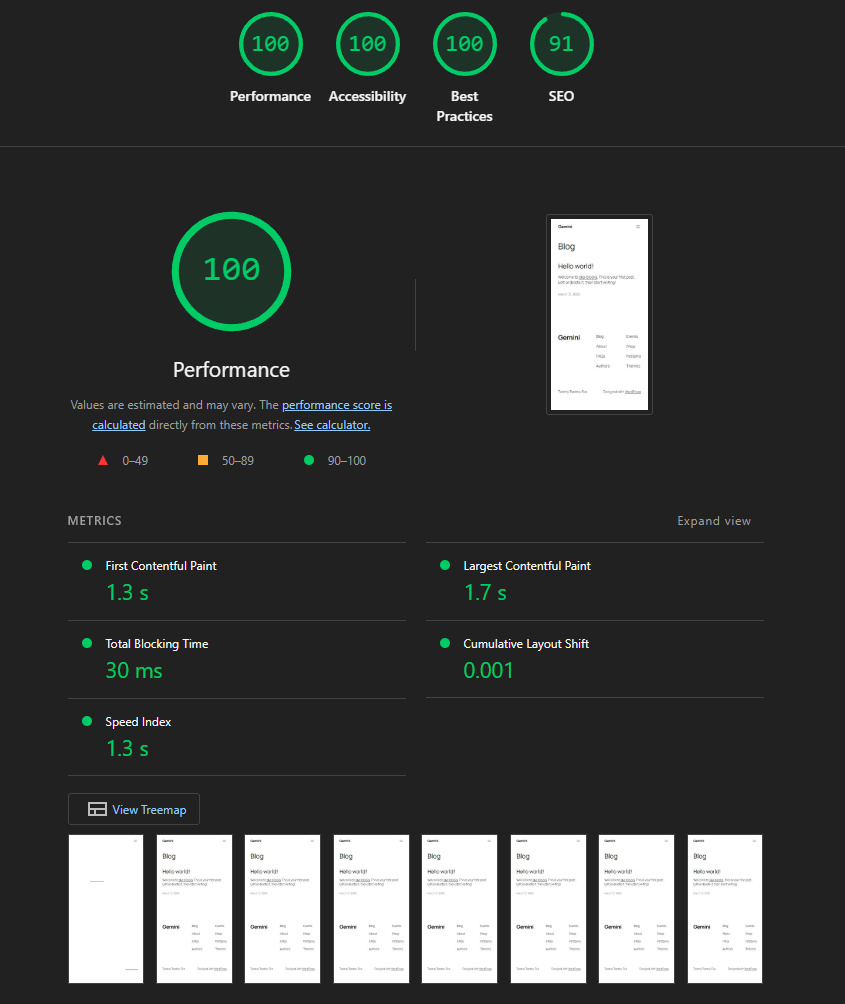
I set up a brand new site using Twenty Twenty-Five theme with no content. The site scores 100 on mobile performance on Lighthouse, which is to be expected given that there is nothing there yet, but we’ll also check the performance once completed.
Setting up the Tailwind configuration
Looking at the code in Google AI studio, the theme variables are created as specified:
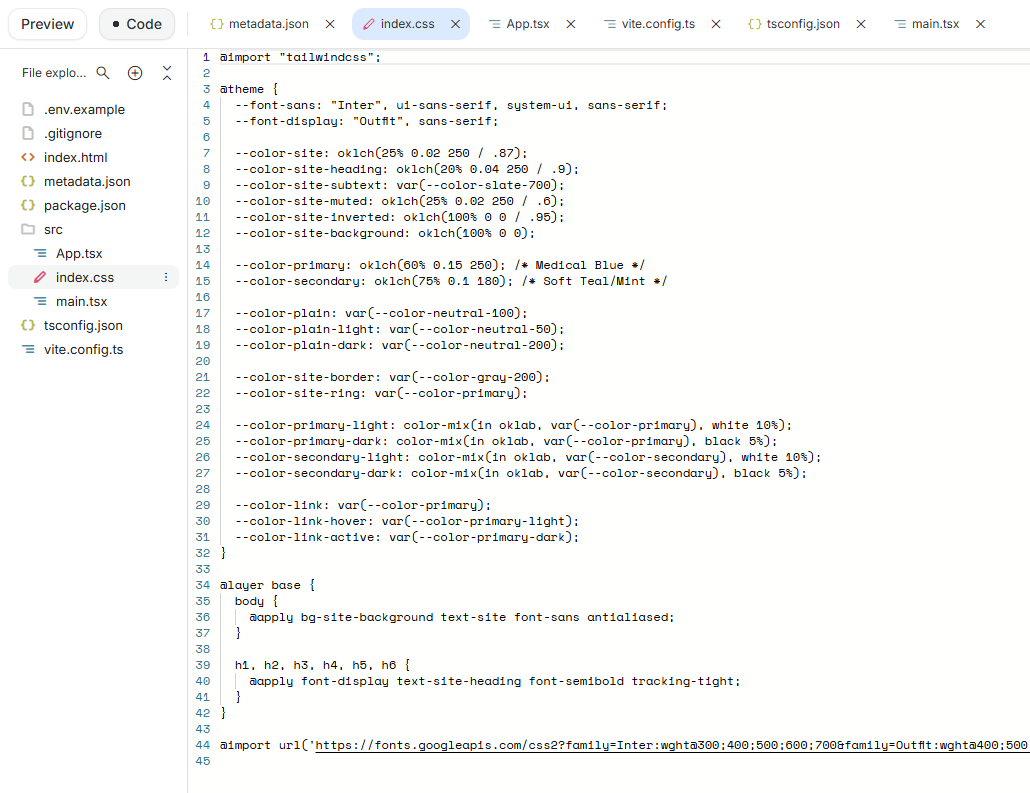
To configure Tailwind to use these variables navigate to ska-blocks settings in the WordPress admin dashboard:
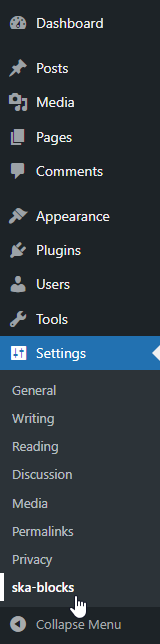
Under Typography let’s set up the fonts:
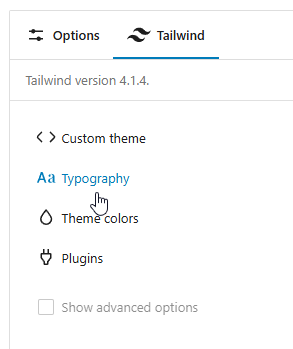
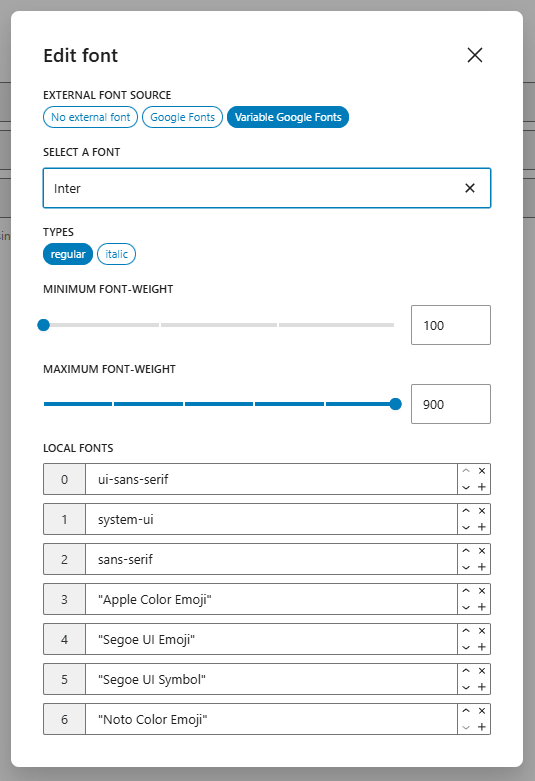
First let’s edit the default sans font to use a Google font:
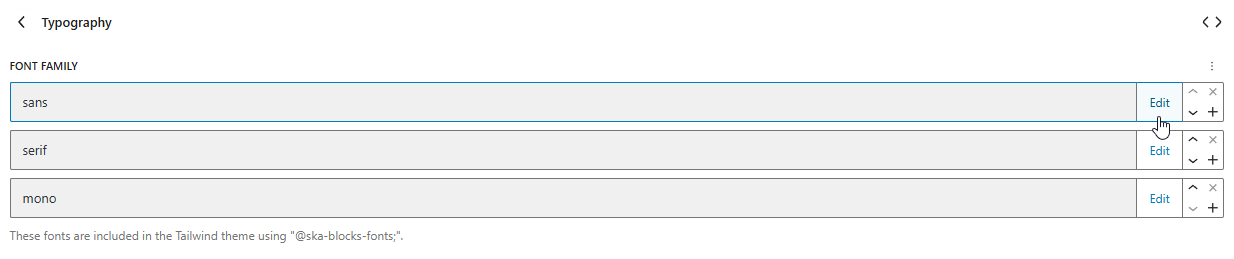
The AI used a regular Google font, but as the variable font is also available let’s go with that instead:
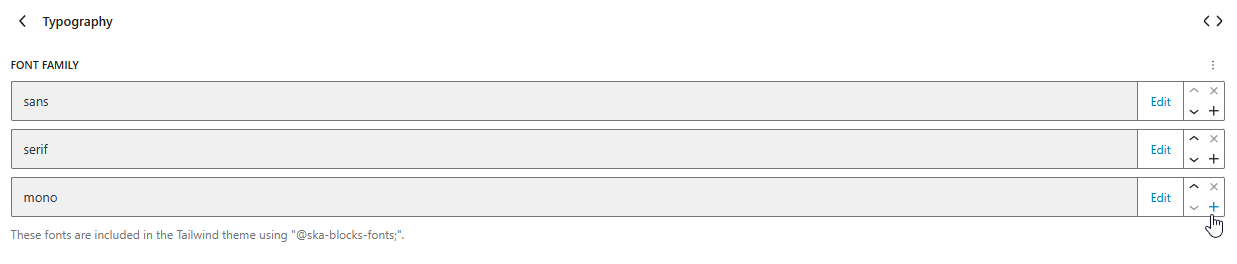
Now let’s define a separate font for headings by pressing the plus icon to add another font entry:
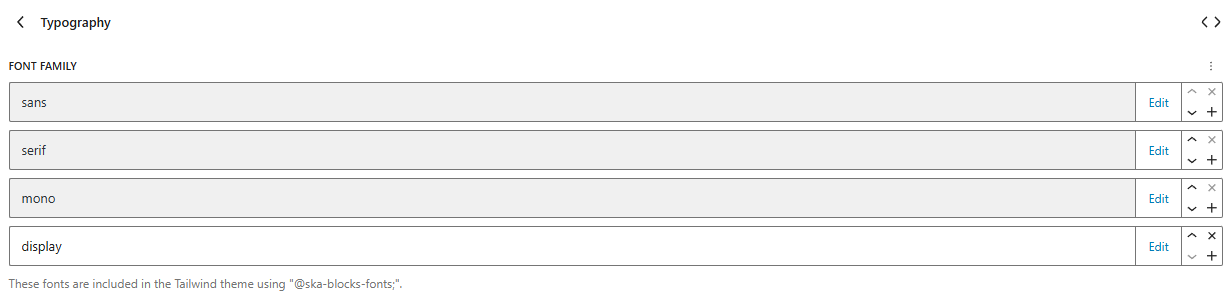
Call it display and press Edit:
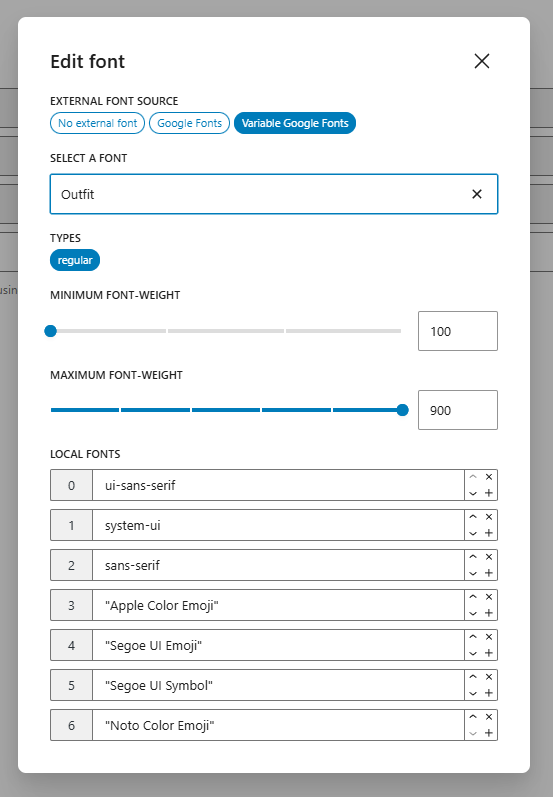
and select the “Outfit” variable Google font:
Now let’s adjust the theme palette:
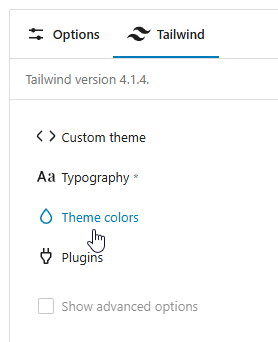
Update the colors under the site palette:
as well as the primary and secondary palettes:
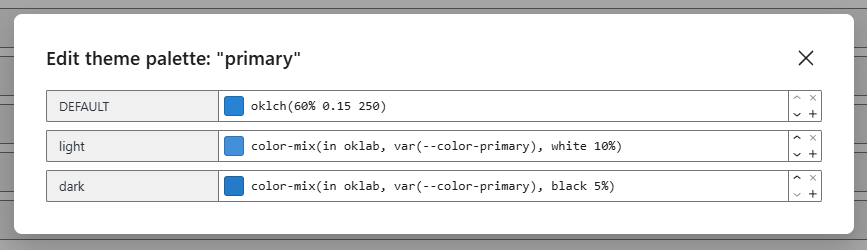
Just needed to update the DEFAULT color, as light and dark variants are derived from it automatically using color-mix().
Converting HTML to blocks
Header
Since a “full site editing” theme uses Template Parts (aka Patterns) for Header and Footer we’ll have to do that under the Site Editor:
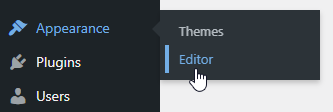
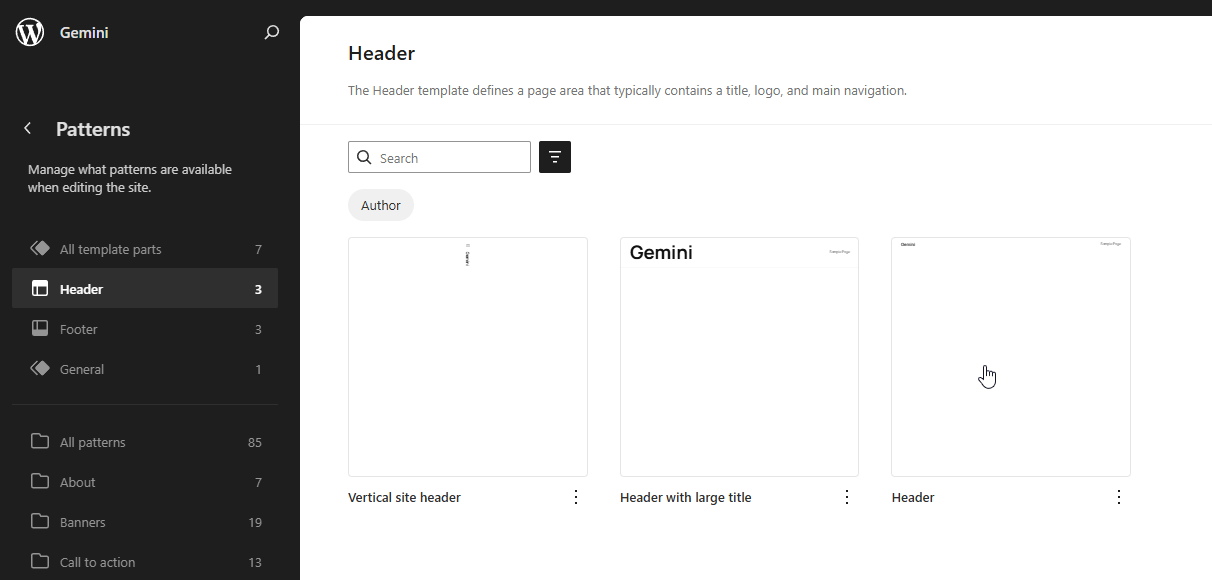
Navigate to Patterns -> Header and edit the Header template part:
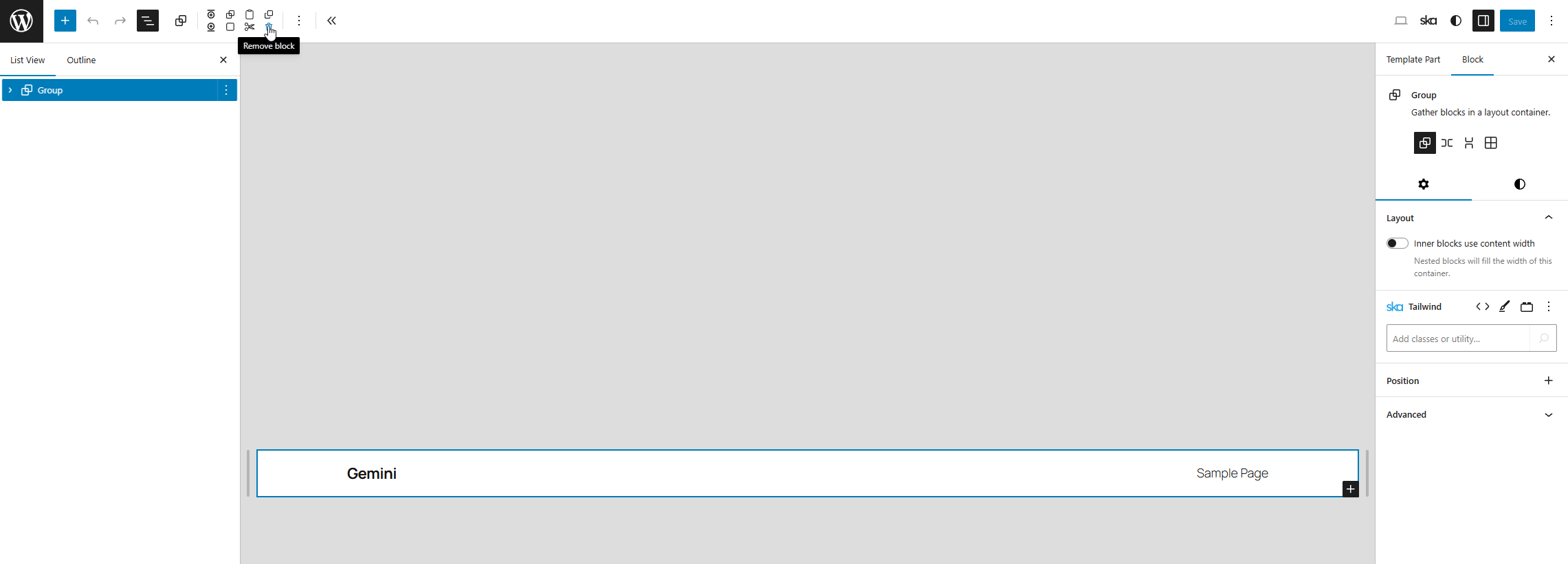
Delete the original contents:
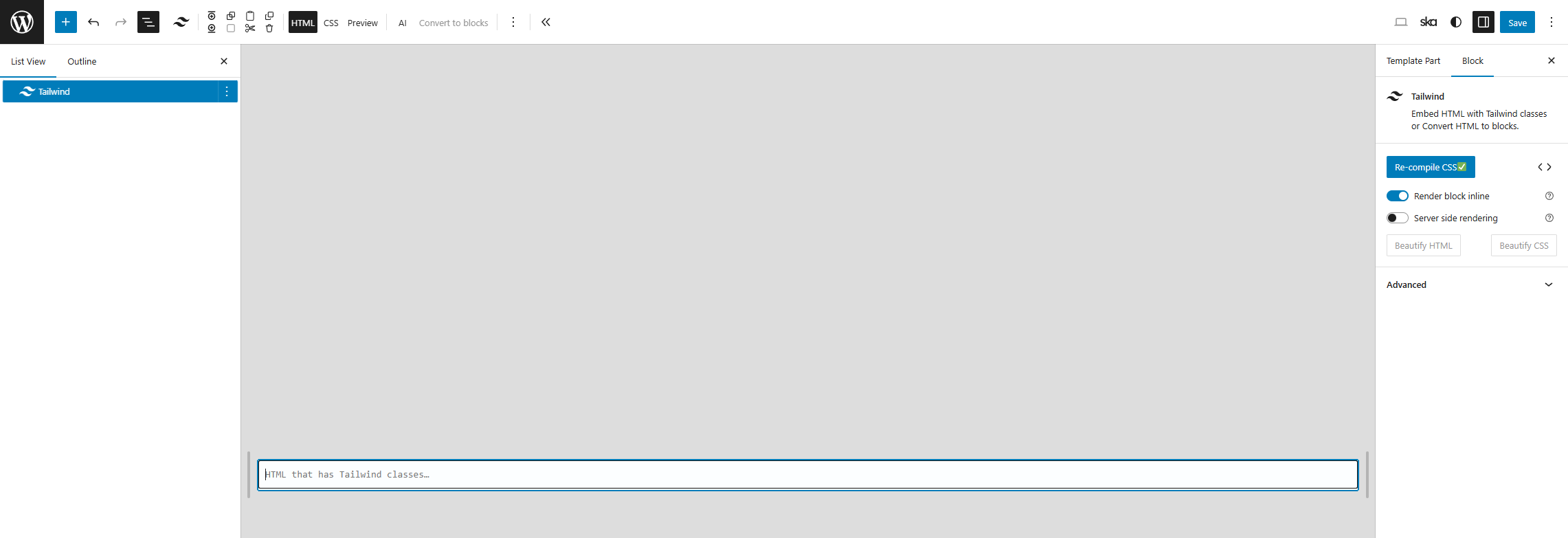
and insert the Tailwind block:
Now we’re going to inspect the source code in Google AI Studio – open Dev Tools (F12), activate the element selector (Ctrl + Shift + C) and find the root element of the header:
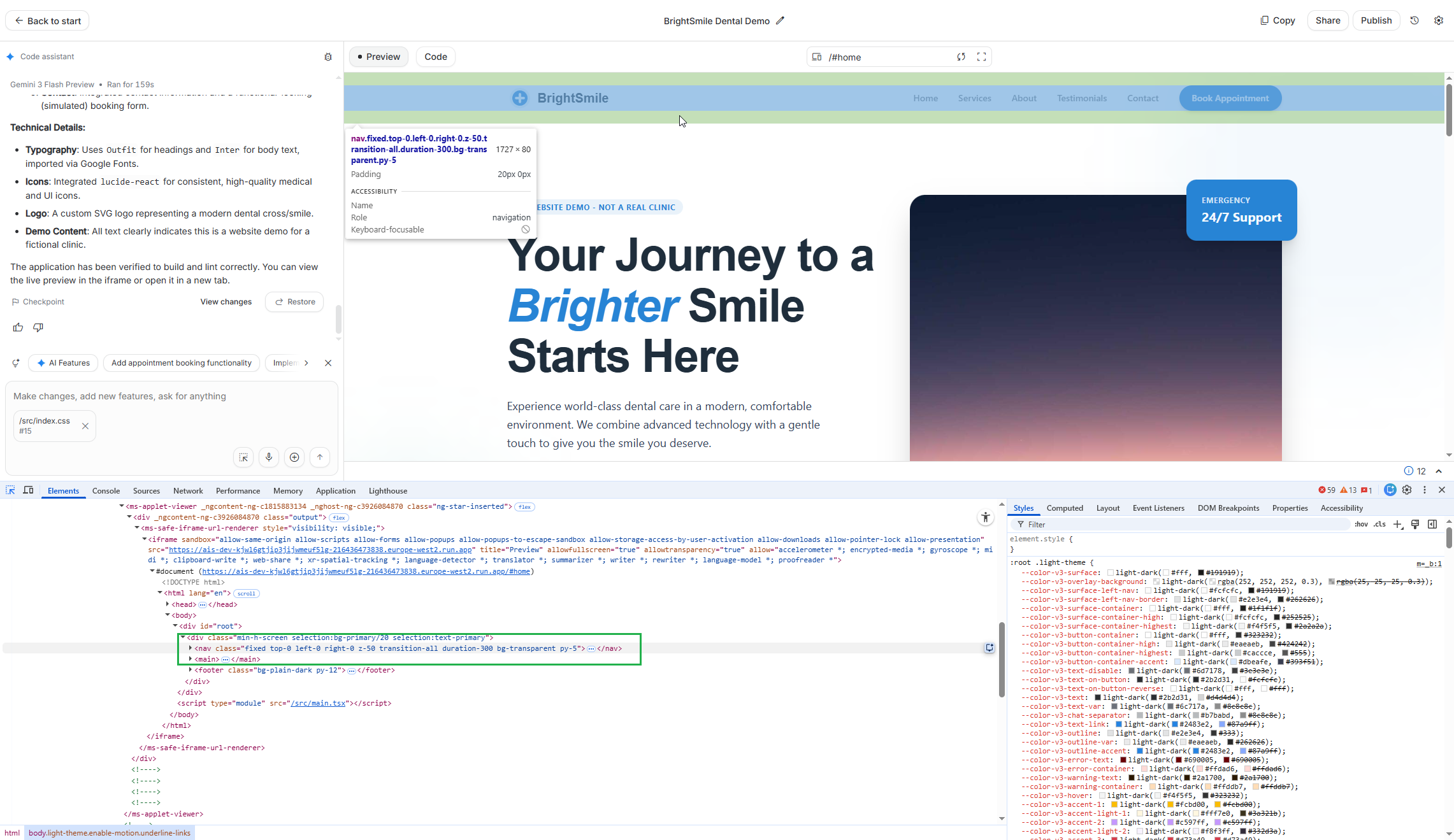
Here it is a <nav> element. Press F2 to “edit” it, select all (Ctrl + A) and copy (Ctrl + C) the raw HTML:
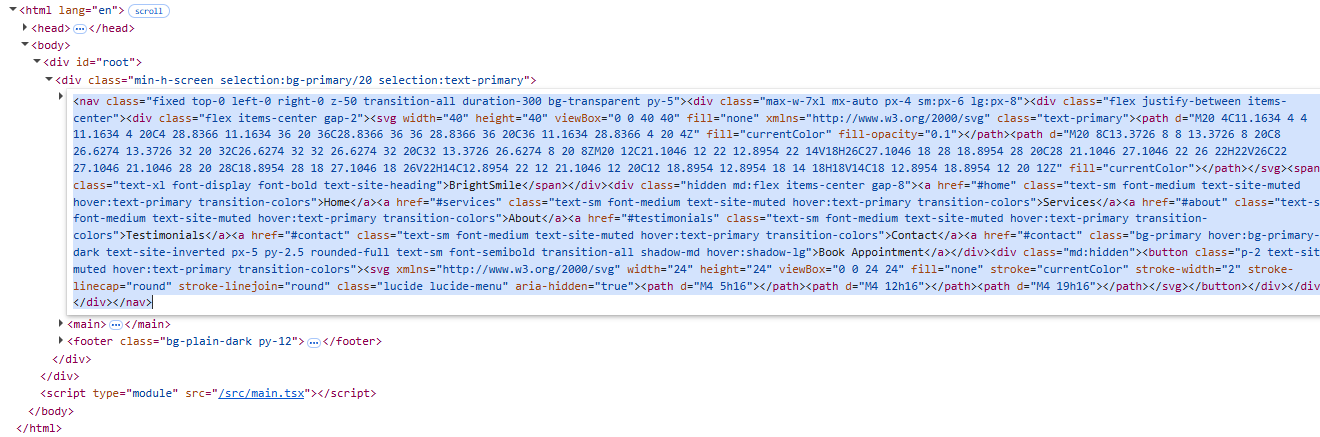
Paste it into the Tailwind block and hit “Convert to blocks”:
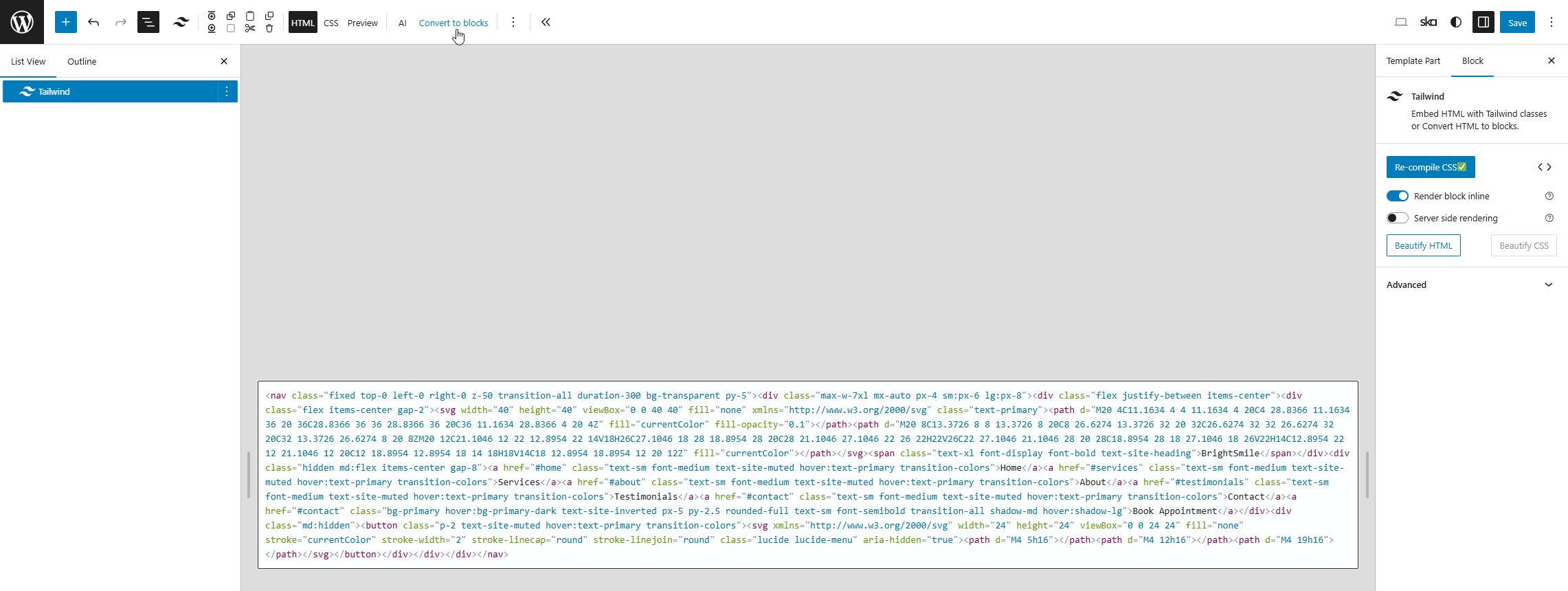
The result needs some manual adjustments:
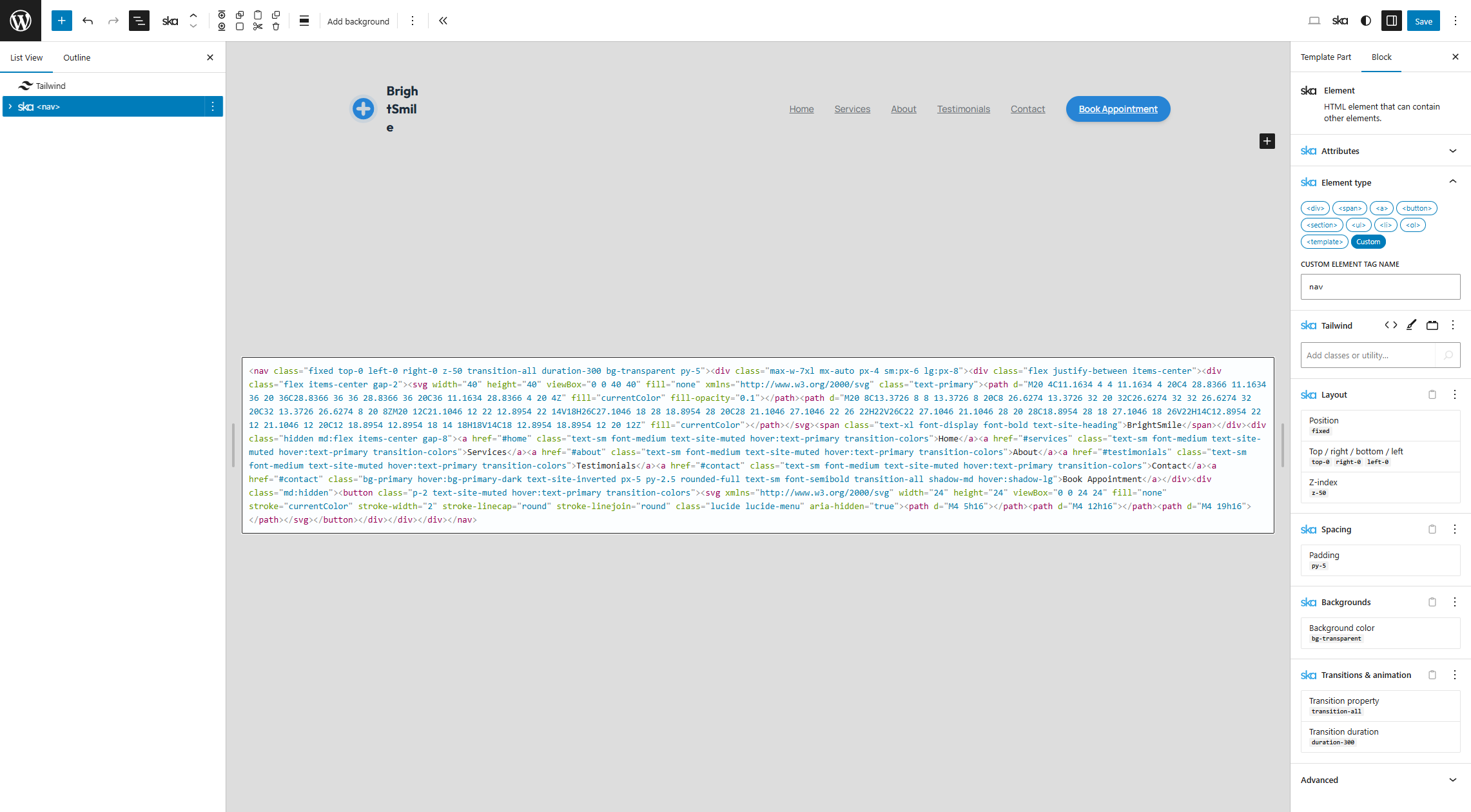
First of all, you can remove the Tailwind block as it has done its’ job.
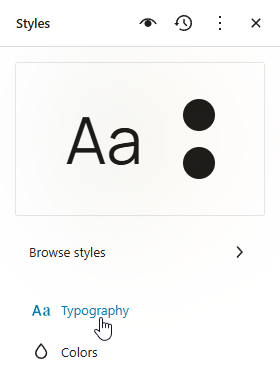
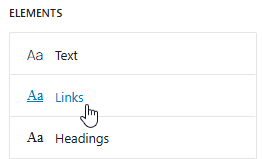
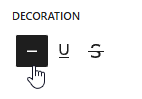
Links have underlines – this is the default Twenty Twenty-Five theme behavior, but since we don’t want to keep removing these manually with the no-underline class it can be turned off from Styles -> Typography -> Links -> Decoration by setting the value to None:

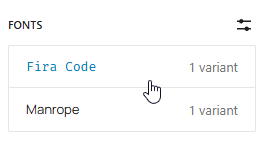
While we’re here, get rid of the default fonts of the Twenty Twenty-Five theme (by clicking on it and unselecting all variants) as we won’t be using these:
instead, let’s apply the Tailwind fonts to the site with some custom CSS from Styles -> Additional CSS:
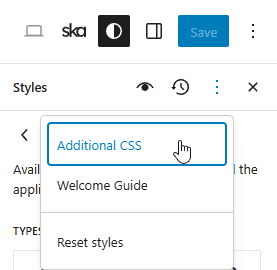
body {
	font-family: var(--font-sans);
}

h1, h2, h3, h4, h5, h6 {
	font-family: var(--font-display);
}Sticky header – we don’t want the header to be fixed as it renders badly in the editor. Instead, let’s make the header sticky with the following Tailwind classes: parent:sticky parent:top-[var(--wp-admin--admin-bar--height,_0px)] parent:z-50. The parent: variant (custom variant added by ska-blocks plugin) applies the CSS rules to the header’s parent element which is going to be the block that renders this template part.
The AI-generated code has bg-transparent on the header and applies different classes when scrolling down:

Since this is a “static” site let’s just use bg-site-background/80 backdrop-blur-md instead.
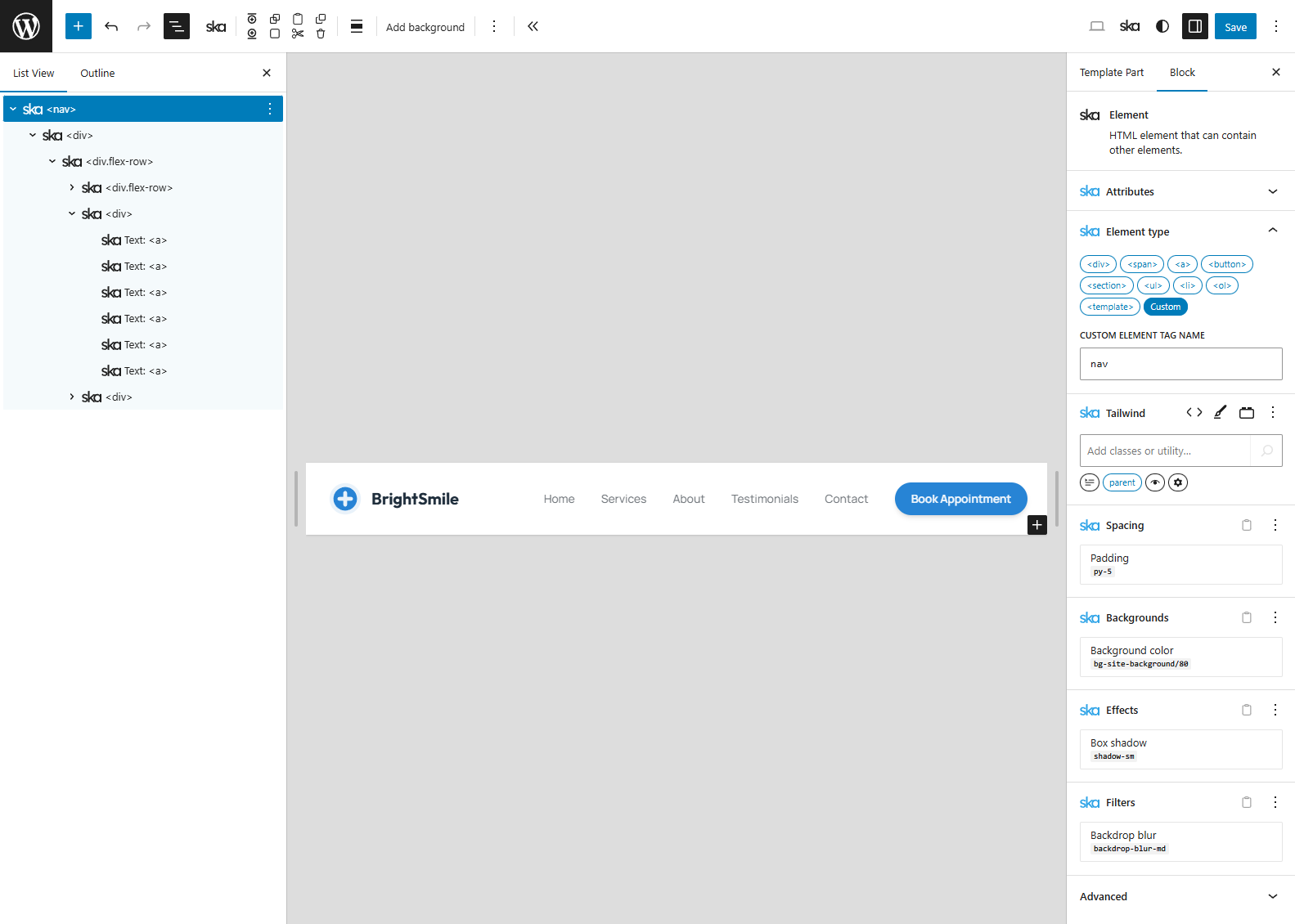
whitespace-nowrap class on the logo text to fix the text wrapping issue:

You could also switch to using the Site Title block there to provide a dynamic value.
Main menu
The AI-generated code uses a mobile menu that utilizes JavaScript:

For a static site such as this it won’t do. We would have to use the WordPress core Navigation block which comes with this functionality, but it comes with its’ own styles and it’s tricky to apply Tailwind classes to the complex markup it produces. Instead, let’s make the menu items visible on mobile as well by swapping the hidden md:flex classes for flex flex-row flex-wrap and the element that contains both the logo and the main menu should have flex flex-col md:flex-row gap-y-4:
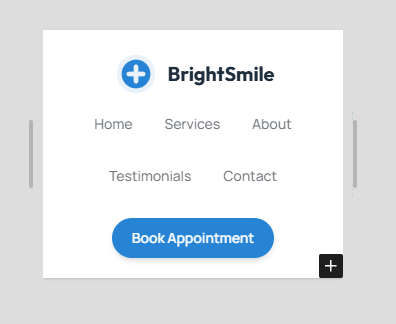
As all the links are same-page anchor links adding the following class to the <nav> element can make the experience much nicer: [html:has(&)]:[scroll-behavior:smooth] (adds smooth scrolling to anchor links).
Footer
Same process for the footer:
- Inspect the source code
- Copy the raw HTML for the
<footer>element - Edit the Footer pattern in the Site Editor
- Delete content
- Insert a Tailwind block
- Paste raw HTML
- Convert to blocks
- Make manual adjustments, if needed
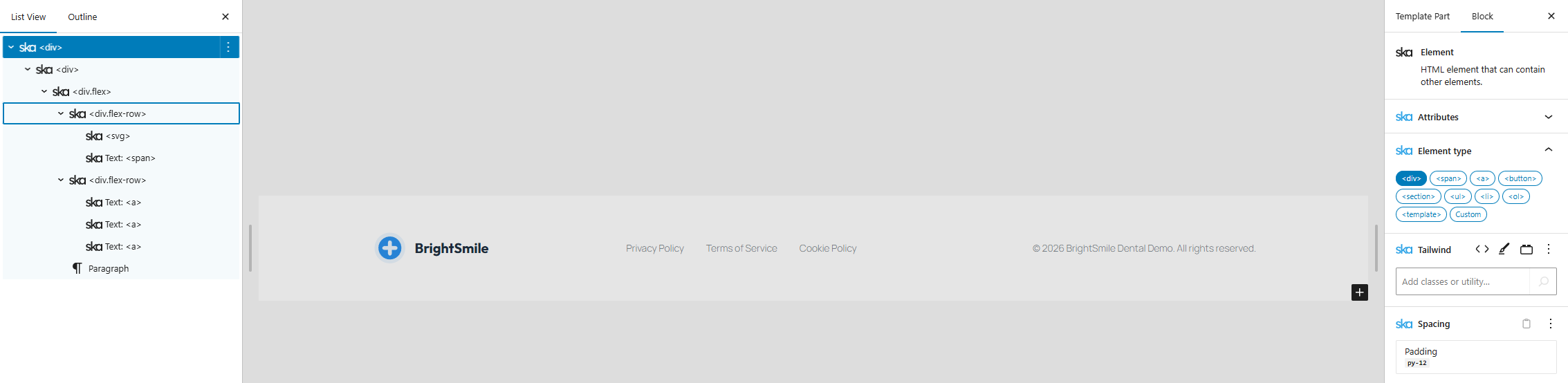
A thing to note – the <footer> element type is not actually needed here:

as the WordPress template part that renders the footer will itself use the <footer> element, so the Element type can be changed to a <div>. Also added whitespace-nowrap to logo text:
Content
Finally the content sections need to be converted. For that, let’s create a new Page – “Home” and set its’ page template to “Page No Title”:
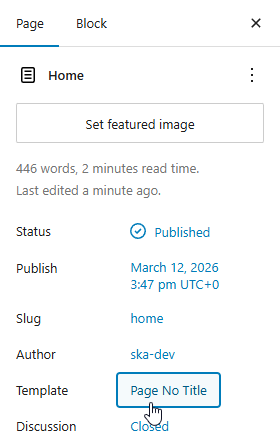
You’ll also need to configure this page to be the Front page from WordPress Settings -> Reading -> Your homepage displays -> A static page.
Grab the raw HTML for each of the sections separately (or all at once), insert the Tailwind block and convert them to blocks:
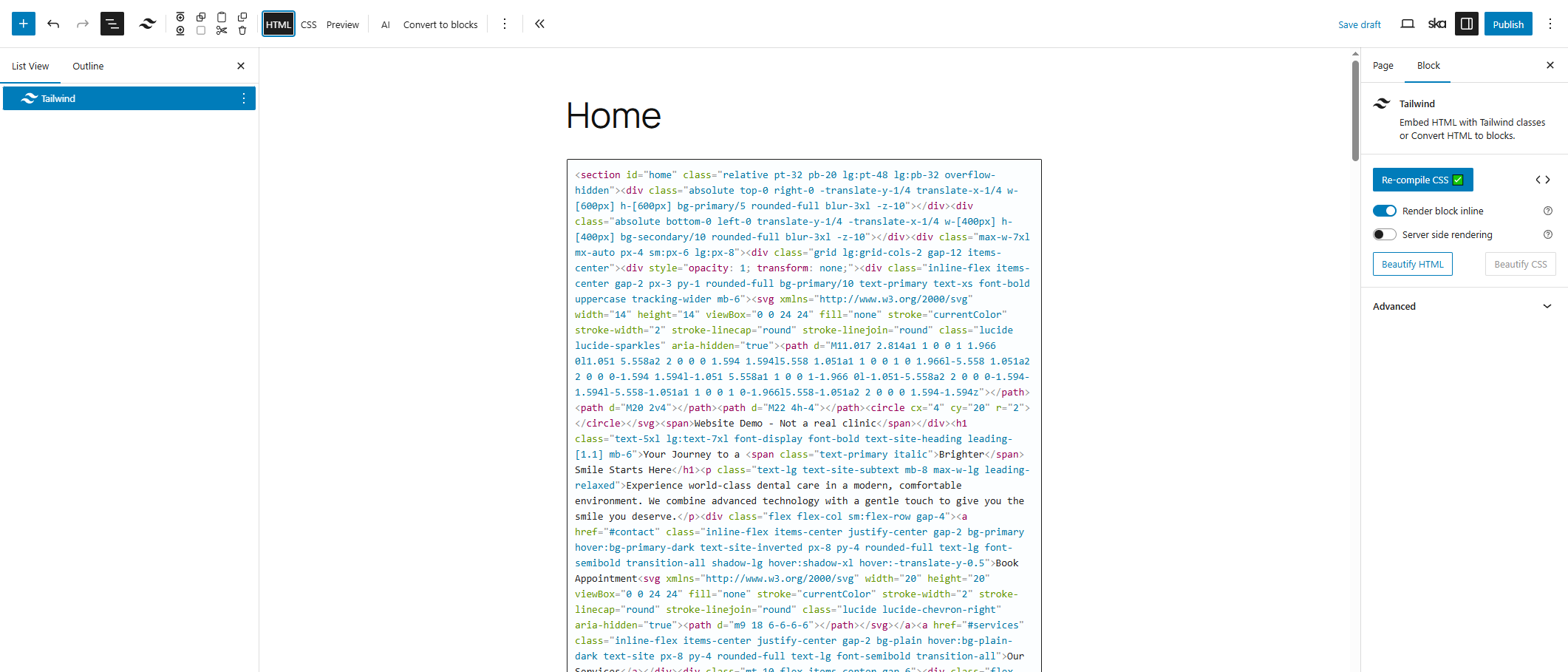
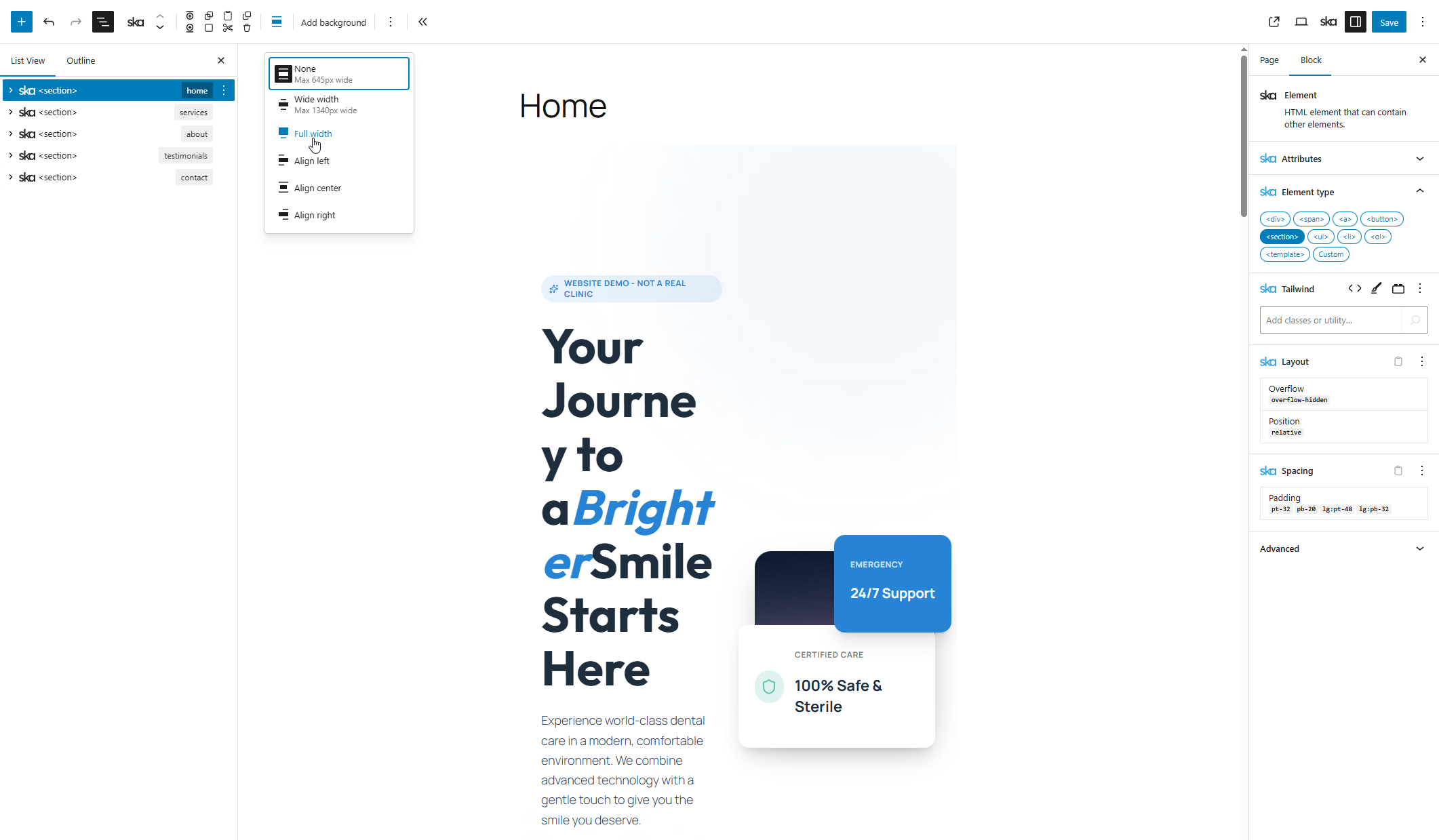
You’ll want to change the <section> elements’ alignment to Full width so that they take up all the horizontal space:
->
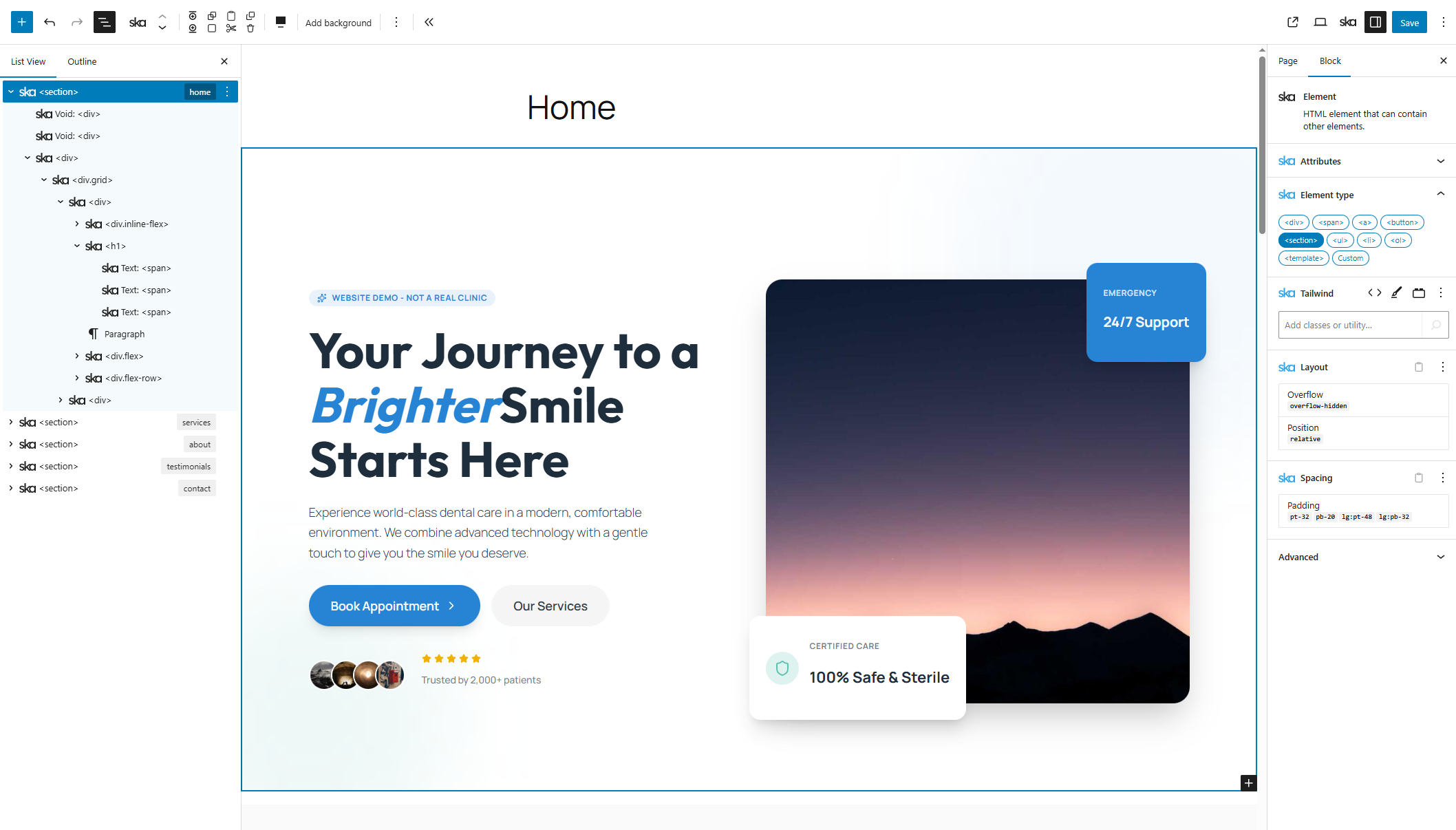
Now there are a couple of things to fix.
Fix hero heading
Due to the conversion from HTML the heading has lost some whitespace (which is hard to accurately keep due to the nature of HTML spec) and it’s a <h1> element with 3 <span>-s because part of it uses the primary color:
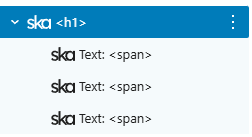
There is a simpler way to achieve this in the block editor by styling rich text with Tailwind classes. To use that method copy all the Tailwind classes of the <h1> block:
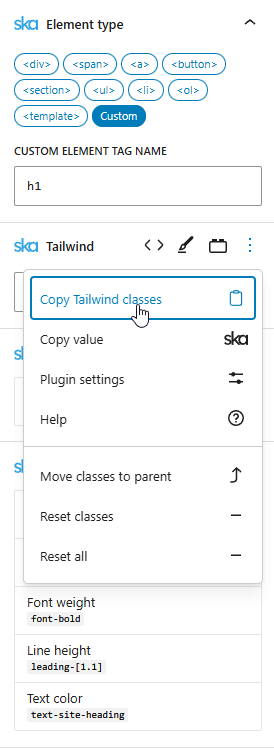
and insert a Heading block, set its’ heading level to H1 and add the previously copied classes to it, as well as the full contents of the text “Your Journey to a Brighter Smile Starts Here”. Next, select the word “Brighter” and make it italic (Ctrl + i):
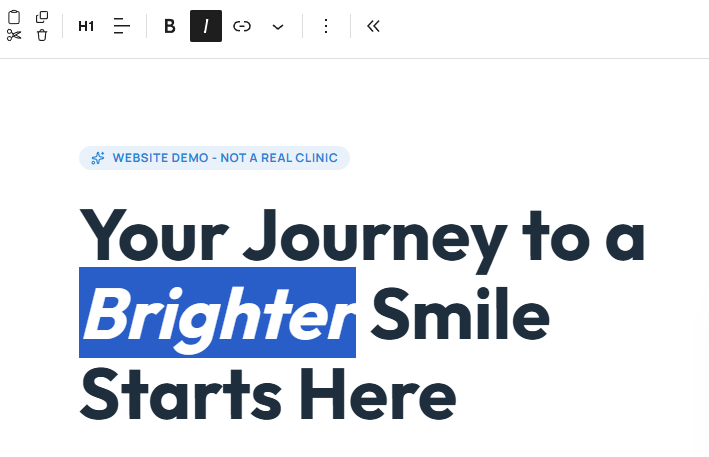
Finally, add the class [&_em]:text-primary to the block to make the italic text use primary color.
Fix spacings
Due to some Twenty Twenty-Five styles the <section> elements have spacing between each other – easily fixed by adding my-0! classes to every section.
<p> elements in various locations also need the m-0! class to clear some of the default margins that are added by the theme.
Fix color bug
The AI has erroneously added the group-hover:text-site-inverted to the icon’s wrapper element, not the <svg> icon itself (which has text-primary) so during the hover state the icon disappears:
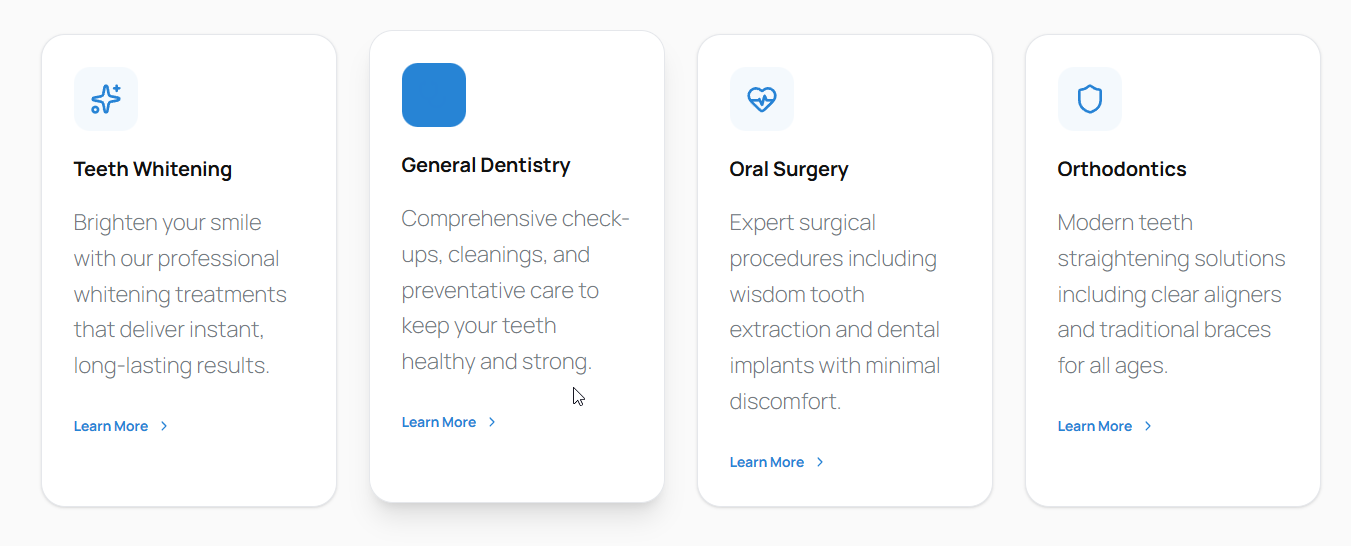
Easily fixed by moving the class, along with transition-all duration-300. And let’s use transition-colors over transition-all while we’re at it, as that’s the only thing we’re transitioning.
Placeholder images
The AI-generated code includes images from third party sources like picsum.photos, pexels, unsplash – if you’re going to use the images, then they should probably be self-hosted. This can easily be done by Right click -> Copy image and paste it into the Block Editor, which uploads it to your media library. Then remove the pasted image block and swap out the image in the actual block from where you copied it by clicking on Replace image -> Open Media Library.
List alignment
By default ska-blocks does not include Tailwind’s “Preflight” styles that apply some CSS resets – not every theme is compatible with these. But that also introduces oddities, such as the user agent’s style for <ul> element: padding-inline-start: 40px is applying to the list on our site:
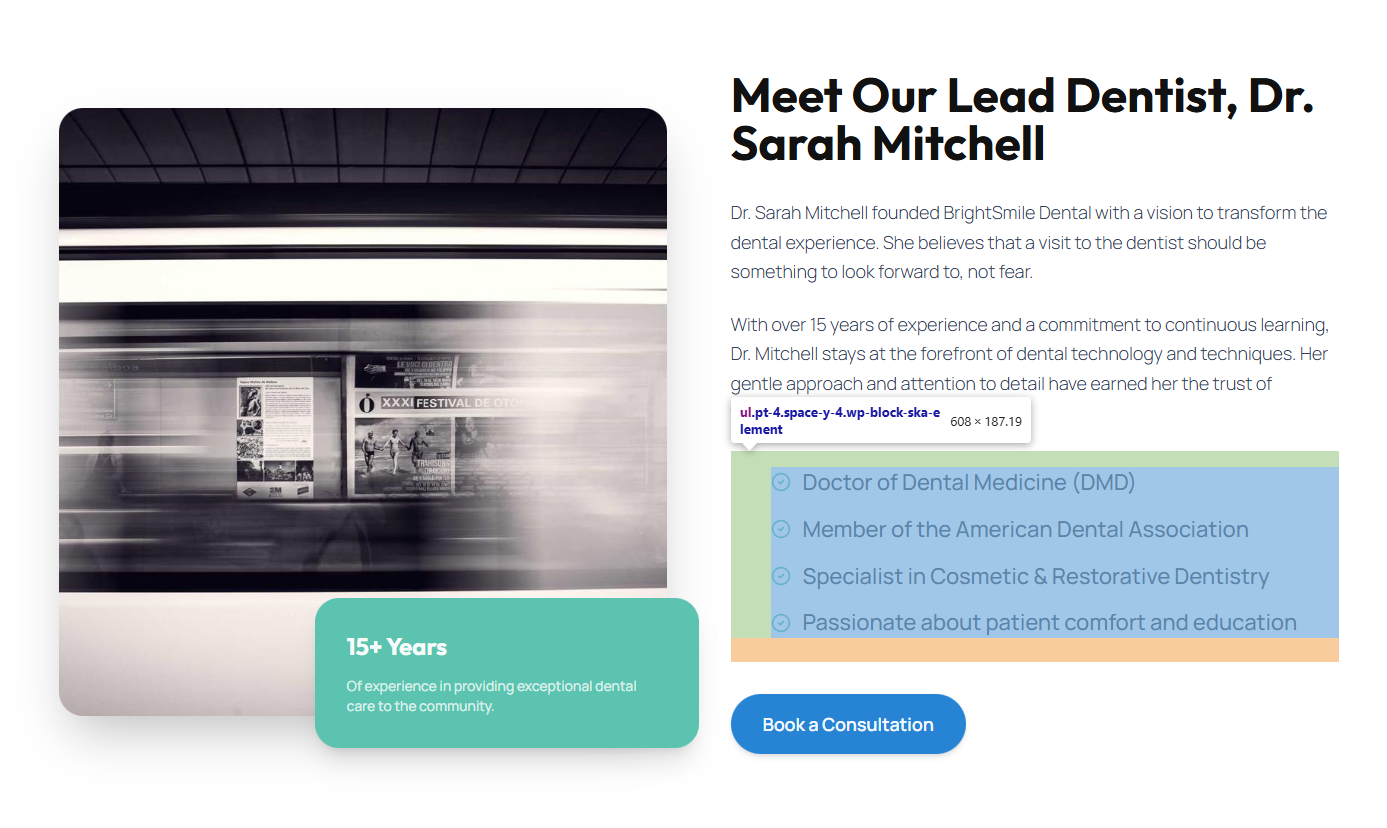
We could fix this with a pl-0 on the list, or we could enable the Preflight under ska-blocks -> Options -> General -> Tailwind global styles:
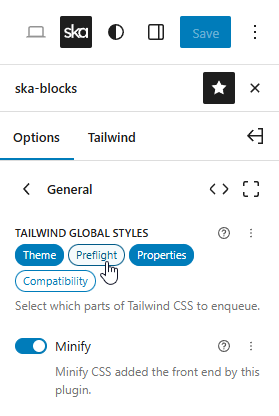
I’m going to leave it off for now and fix issues on a case by case basis, another one being these form inputs overflowing:
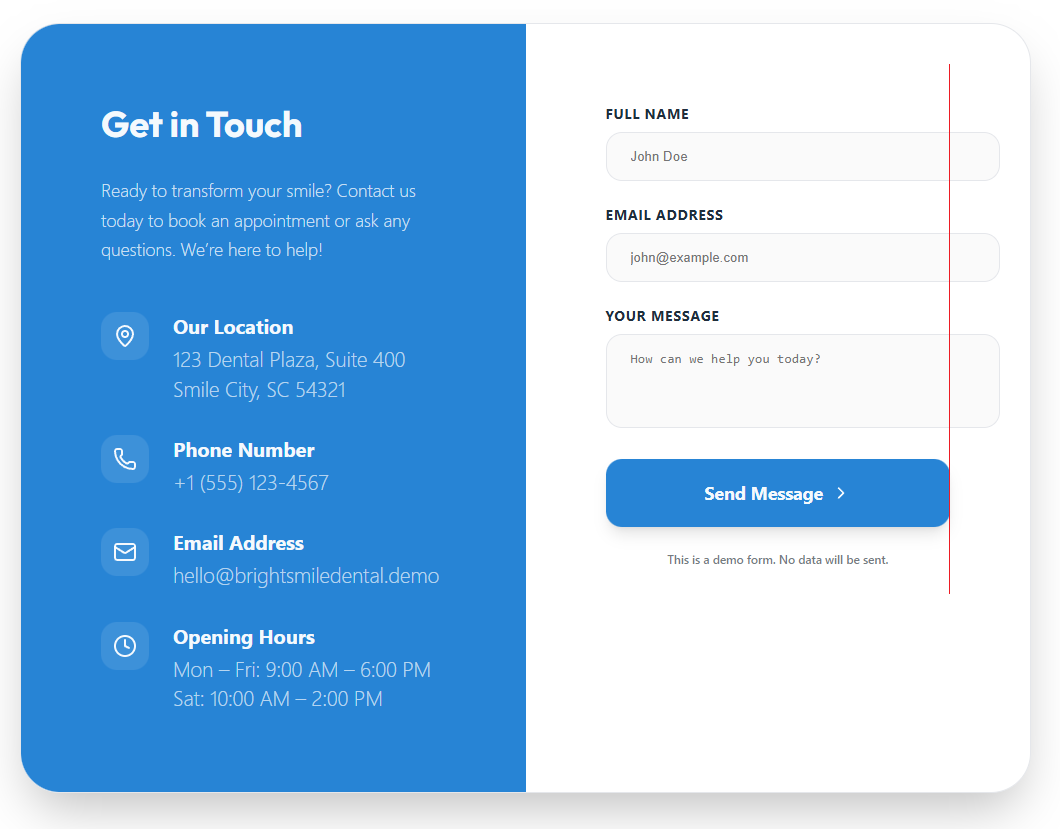
This issue stems from the fact that the TT5 theme uses box-sizing: content-box by default, but with Tailwind’s reset CSS it’s expected to be box-sizing: border-box – fixed by either enabling the Preflight or adding box-border to the inputs. Without the Preflight the inputs and textarea also use user agent’s default fonts – fixed by font-sans.
That concludes the conversion of the AI-generated site to WordPress.
Performance optimizations
Looking at the front end source code right now there are some easy wins:
- A large chunk of code is pertaining to Emojis – let’s get rid of it.
- Google fonts need to be self-hosted for reasonable performance.
- The final HTML is not minified, nor served from a cache.
add_action('init', function() {

	remove_action('wp_head', 'print_emoji_detection_script', 7);
	remove_action('wp_print_styles', 'print_emoji_styles');
	remove_filter('the_content_feed', 'wp_staticize_emoji');
	remove_filter('comment_text_rss', 'wp_staticize_emoji');
	remove_filter('wp_mail', 'wp_staticize_emoji_for_email');

	add_action('admin_print_styles', function() {
		remove_action('admin_print_styles', 'print_emoji_styles');
	}, 9);

	add_action('admin_print_scripts', function() {
		remove_action('admin_print_scripts', 'print_emoji_detection_script');
	}, 9);

	add_filter('tiny_mce_plugins', function($plugins) {
		if(is_array($plugins)) {
			return array_diff($plugins, ['wpemoji']);
		}
		return [];
	});

	add_filter('wp_resource_hints', function($urls, $rel) {
		if($rel === 'dns-prefetch' && is_array($urls)) {
			$urls = array_diff($urls, [apply_filters('emoji_svg_url', 'https://s.w.org/images/core/emoji/16.0.1/svg/')]);
		}
		return $urls;
	}, 10, 2);
});Applied font optimizations.
Installed and activated free plugins Autoptimize and Cache Enabler.
Final result
View the live siteAI-generated input
WordPress site
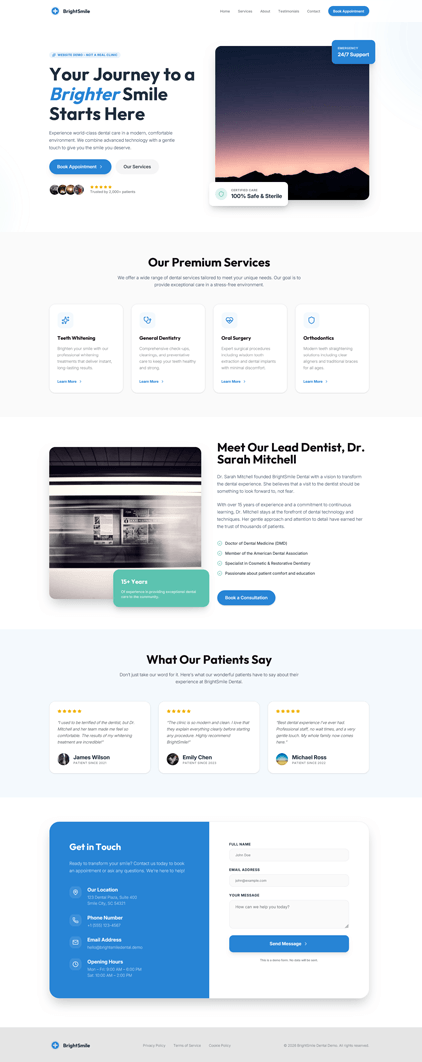
Turns out the Google fonts were not properly loading in the Google AI studio, hence the font difference between the two pictures.
Performance
As noted earlier, the blank WordPress site had a perfect pagespeed score with Lighthouse. Having completed the site and applied some basic performance optimizations, the score remains good, meaning we didn’t introduce massive amounts of unnecessary bloat in the process:
Blank WordPress site
Finished WordPress site
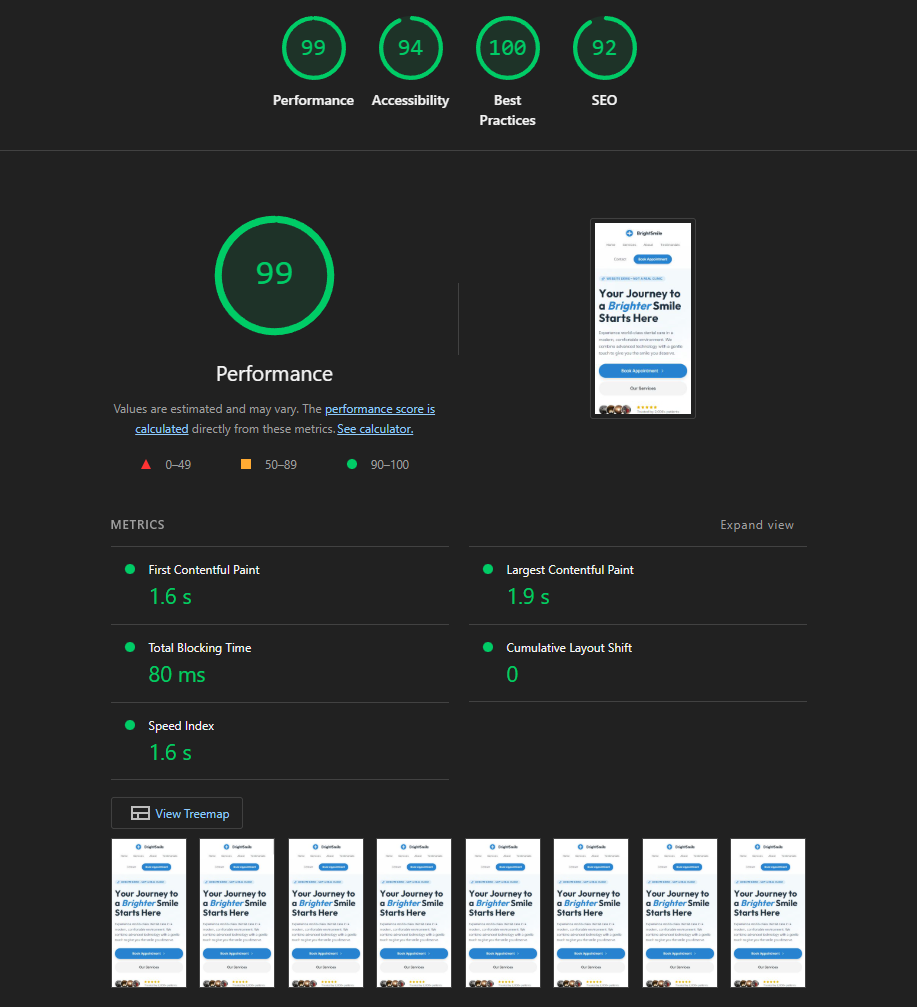
There’s a performance impact from having an image in the hero, and Lighthouse is not happy with some of the color contrasts of the AI-chosen colors. SEO score loses points due to not having a meta description for the site, as there is no SEO plugin installed.
What’s the point of WordPress here?
It’s a one-page static site, we could have just deployed the React app that the AI wrote, made it with Astro or even static HTML. Why use WP?
- Page content is easily editable by anyone (WYSIWYG)
- You can add multiple users to manage content
- Can easily add Google Analytics, Search Console, Tag Manager, Ads with Google Site Kit
- Lots of options to manage consent with WP Consent API and your chosen cookie consent plugin
- If ever a blog is needed, it’s available
- Going multilingual? Polylang or other solutions be used
So in short, WordPress is a good fit if the site is expected to receive any changes or growth – anything you might need has a solution in the WP ecosystem.
Final notes
With this bare-bones setup we can’t have a reactive sticky menu that has a transparent background normally and a blurry background with a shadow when the user has scrolled down. For that we would have to write custom JS or bring in Alpine.js like is done with ska-theme’s sticky module. Nor is there a proper mobile menu with a sidebar.
The contact form is not functional – would have to bring in Contact Form 7 and style it differently. The block editor itself will also probably support forms functionality in the future – currently only available with the Gutenberg plugin activated.
Twenty Twenty-Five is not the ideal theme to use for a pixel-perfect conversion of a Tailwind design to WordPress as it has some predefined styles that may cause conflicts. Plus it’s designed for usage with the style controls that the block editor provides, as opposed to ska-theme, which I have designed to strip everything unnecessary and add useful blocks and tools to facilitate creating things like sticky menus, mobile sidebar menus, dropdowns, dialogs, accordions and sliders with minimal bloat.
Leave a Reply